
- Combining Creative Fabrica resources with Canva’s intuitive tools allows you to create unique, high-quality designs for a wide range of purposes—from T-shirts to greeting cards. According to industry sources, this process consists of several key steps:
1. Sourcing and Preparing Assets in Creative Fabrica
-
Search and Download: Start by searching for the desired graphics on Creative Fabrica (e.g., searching for “monster truck”). Once you find a suitable bundle or image, download it and be sure to unzip the archive so the files are ready for upload to Canva.
-
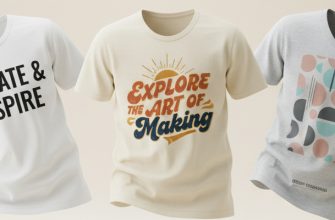
Using Mockups: You can also find high-quality mockups on Creative Fabrica (such as kids’ T-shirts or cards) to later demonstrate how your design will look on a finished product.
2. Importing and Working in Canva
-
Project Setup: In Canva, create a design with the required dimensions (e.g., 8×8 inches).
-
Uploading Assets: Go to the “Uploads” tab and add the images you downloaded from Creative Fabrica.
-
Composition: Place the image on the canvas and use the alignment guides to center or reposition the object.

3. Editing and Styling
-
Text Work: Add a text box and type your desired phrase.
-
Color Matching: To ensure the text harmonizes with the Creative Fabrica graphics, use Canva’s Eyedropper tool. This allows you to pick a color directly from the image.
-
Effects and Fonts: You can change fonts, add outlines of varying thickness, and apply the Curve effect to your text.
-
Canva Elements: Complement your design with built-in Canva elements (e.g., “dirt” textures for a truck theme). You can change their position (“Send to Back”) and adjust transparency so they blend seamlessly with the main image.
4. Creating Variations and Exporting
-
Duplicating Designs: You can quickly create a series of works by duplicating the page and swapping one element (e.g., the truck) for another from the same Creative Fabrica set, while maintaining the overall text and background style.
-
Downloading: For high-quality printing (such as sublimation), it is recommended to download the design as a PNG with a transparent background. In the Canva Pro version, you can also increase the size/DPI for better print clarity.
5. Using Mockups for Presentation
-
To see how the design will look in real life, upload the mockup you previously downloaded from Creative Fabrica into Canva.
-
Overlay your finished design onto the mockup image and adjust the size. This is especially useful if you plan to sell your work on platforms like Etsy or Facebook.
50 Free Canva Templates for POD (Fully Editable + Free Download)
Using Creative Fabrica as a source for graphics and mockups, combined with the flexibility of Canva’s tools, allows you to rapidly create professional content even without deep design skills.